The BudStacks Guide · Part 4
The Customer Book
Everyone who shops with you — their details, their history, the labels you put on them, and what you're allowed to email them about.
In your admin: /tenant-admin/customers
The customer list
What it’s for
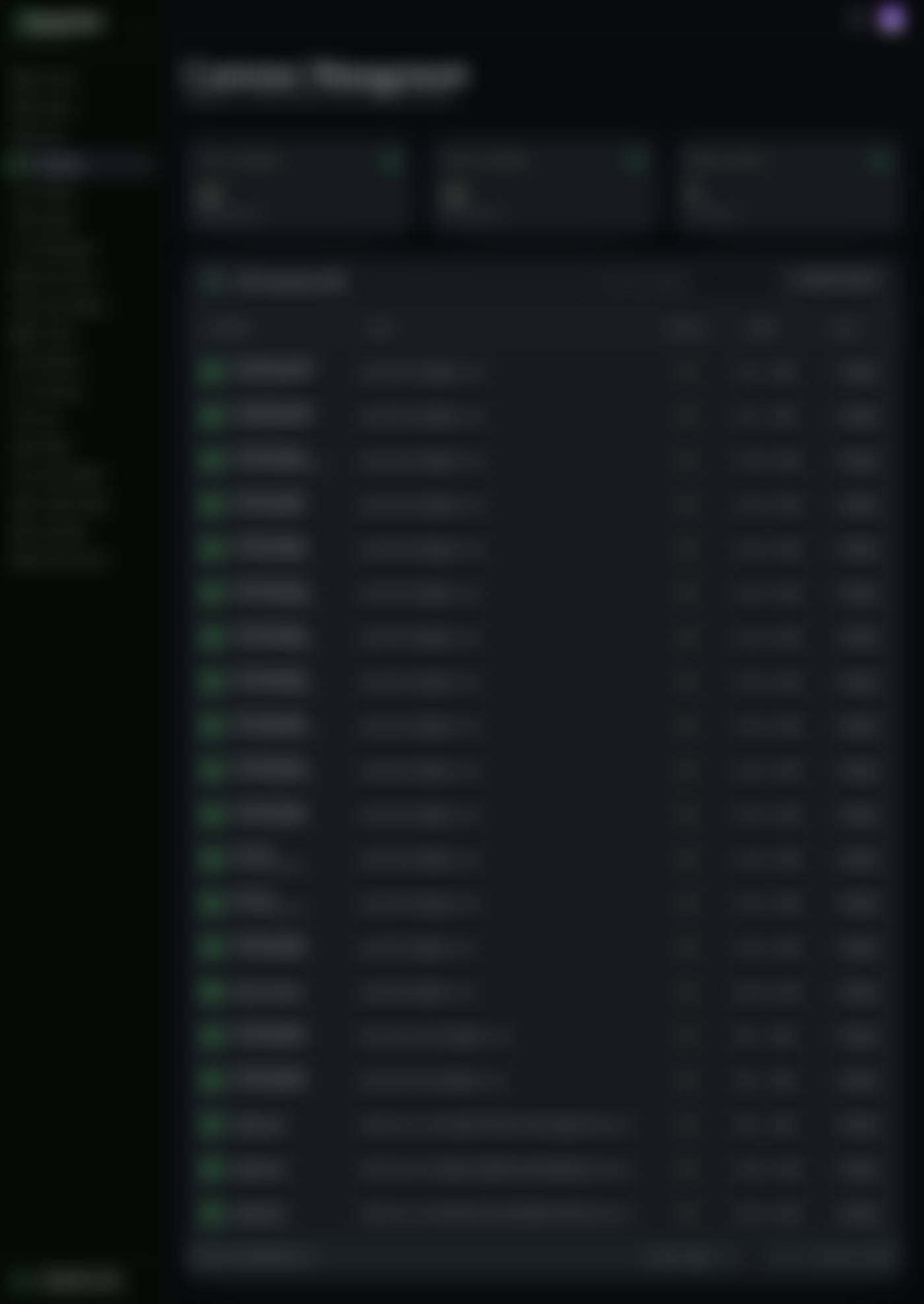
One list of every person who has registered or ordered on your store. This is where you find someone, and where you get a feel for how the base is growing.
What it does
- Three counters across the top: Total Customers, Active Customers, and Recent Sign-ups in the last 30 days.
- Search matches name, email, or phone. Partial words are fine and capitals don't matter — typing "sar" finds Sarah.
- Click the Customer, Email, or Joined headings to sort by them; click again to reverse.
- The Orders column shows how many orders each person has placed — that column is how you spot a regular.
- Once you have tagged anybody, a tag dropdown appears next to the search box and narrows the list to one label.
- Rows per page runs from 10 to 100, with first and last buttons — the heading tells you how many matched.
- Export downloads what's on screen as a spreadsheet file: name, email, phone, status, order count, join date, and marketing consent (yes or no, plus when it was given).
- A Marketing column shows who has agreed to hear from you. The "Consented only" filter narrows the list — and the export — to those people; campaigns only ever go to them anyway.
- A red "ID upload failed" pill marks anyone whose ID document didn't make it through at sign-up — they stay unverified until it's re-uploaded.
- View opens that person's own page, covered next.
Why you’ll use it
This is your actual customer base — not a follower count, not a mailing list you rented. Ten minutes here tells you who is buying repeatedly, who signed up and never ordered, and who is stuck at verification and needs a nudge.
- · Total Customers and Active Customers show the same number today — there is no separate "active" rule yet, so read them as one figure.
- · Export covers the page you are looking at, not the whole list. Set rows per page to 100 first if you want more in one file.
- · Customers you have erased drop out of both the list and the counters. A handful of older erased records can still appear as "Deleted User" — they hold no personal data at all.
- · No customers yet? The empty screen has a Copy Store URL button. That link is the one to share.
One customer's page
What it’s for
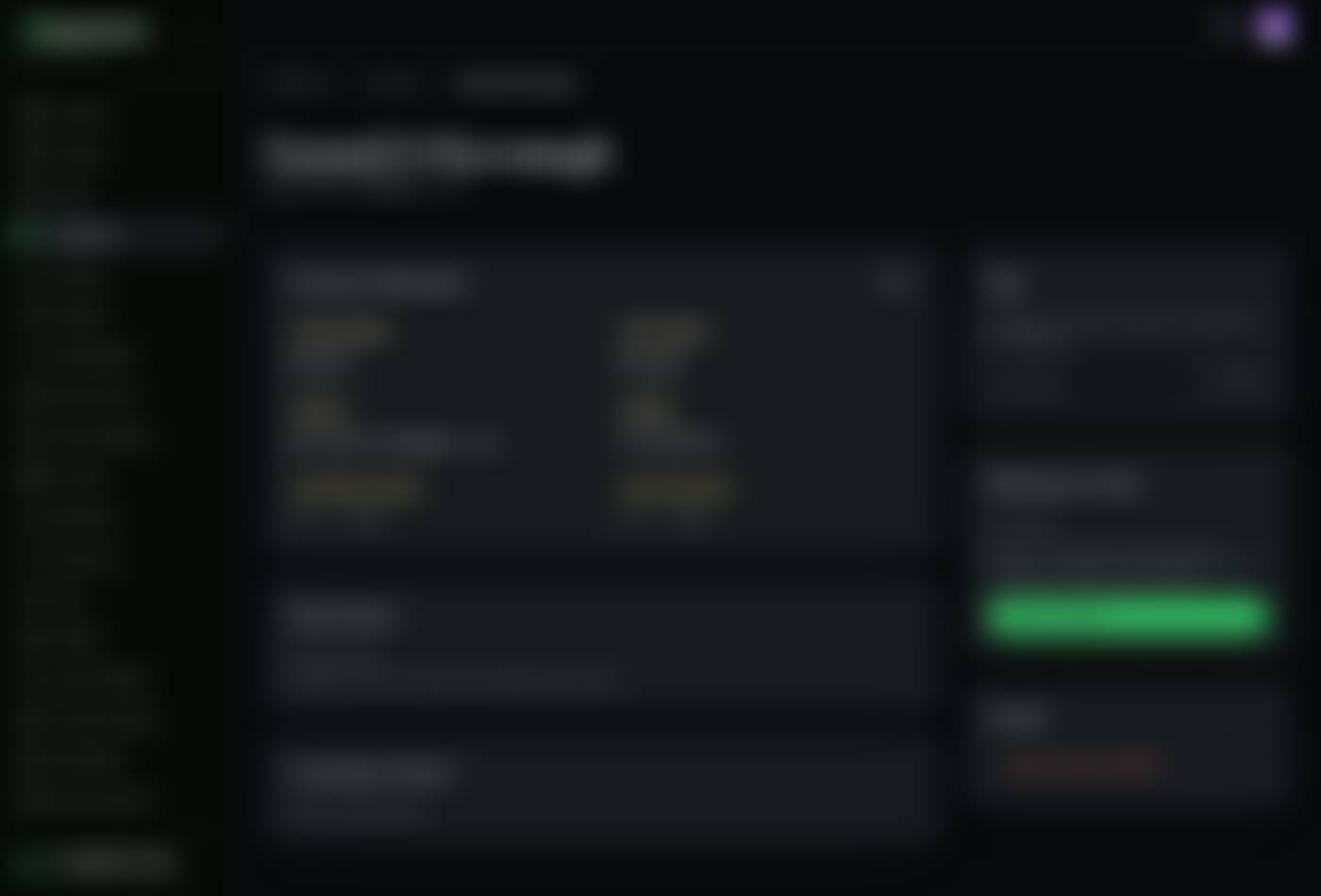
Press View on any row and you get one person on one page — their details, what they have bought, the labels you have given them, and what you may email them.
What it does
- Customer Information holds first name, last name, email, phone, the date they became a customer, and when the record last changed. Edit makes those fields typeable; Save Changes writes them back.
- Changing the email address asks you to confirm first, then updates it in BudStacks, in the login system, and at Dr Green in one go. If any of the three doesn't take, you are told exactly which.
- Order History and Consultation History show this customer's totals; the orders themselves live in the Order Desk (Part 3).
- Down the right: Tags, Marketing Consent, and Actions — each covered in its own section below.
Why you’ll use it
When a customer emails you asking about their account, this page is the whole answer in one screen — no spreadsheets, no cross-checking, no guessing whether the person on the phone is the one in front of you.
- · Medical answers are not shown here and are not kept by BudStacks. Health information belongs with the prescriber, not with the shop.
- · Details captured during sign-up or the consultation form appear here even if nobody ever typed them into this page.
Marketing consent
What it’s for
Whether you may send this customer marketing. It is recorded as a moment in time — the date and minute consent was given — rather than a box that someone might have ticked at some point.
What it does
- Consent is never assumed. Customers give it themselves: a tick at sign-up, on the consultation form, or at checkout. A new customer starts with none.
- The card reads either "Consented on" with the date and time, or "No consent".
- Record consent exists for opt-ins given away from the website — in writing, or in person at a counter. It asks you to confirm, because you are asserting something the customer did.
- Withdraw consent clears it immediately.
- If the customer unsubscribes from an email, consent is cleared automatically. They don't have to ask you, and you don't have to remember.
- Every change is written to the Paper Trail (Part 12): who changed it, when, and what it was before.
- Campaigns and segments only ever reach customers who have consent, so this card is the switch behind your whole email programme.
Why you’ll use it
Consent is the part of marketing that gets shops fined. Handled this way it is simply a date on a record, set by the customer, changed only deliberately, and evidenced automatically — so if anyone ever asks how you came to email someone, you have the answer rather than an argument.
- · No consent does not mean no email. Order confirmations and shipping updates still send — those are service messages about something the customer bought, not marketing.
- · Recording or withdrawing consent needs permission to edit customers (Part 13, The Team Room). Without it the change is refused rather than quietly ignored.
- · Only record consent you can actually point to. The audit entry names you as the person who asserted it.
Data requests: export and erasure
What it’s for
The two things a customer is entitled to ask you for: a copy of what you hold about them, and deletion of it. Both are handled from these screens, and neither needs a developer.
What it does
- Export, on the customer list, downloads what you hold as a spreadsheet: name, email, phone, order count, and join date.
- Delete Customer (GDPR), in the Actions card on their page, erases the person. Name, email, phone, and address are wiped, the login is unlinked, and the connection to their Dr Green medical profile is cut.
- It anonymises rather than deletes. The orders stay — with nobody's name on them — so your sales records, your accounts, and your tax position stay intact and defensible. Nothing you are obliged to keep disappears, and nothing personal remains.
- You are shown exactly that in the confirmation before anything happens, and the action is written to the Paper Trail (Part 12) afterwards.
- Running it twice is harmless — the second attempt changes nothing and still logs.
- If a customer deletes their own account instead of asking you, the identical erasure runs by itself.
Try it: Handle a data request
- Search the customer list for the email address the request came from.Search by email, not by name. Two people can share a name; the address is what identifies an account.
- Press View and check the details on screen match the person who wrote to you.
- If they asked for a copy of their data: their contact details are on this page, their orders are in the Order Desk (Part 3), and the customer list's Export gives you those fields as a spreadsheet you can send back.Say in your reply which systems the copy covers — your store, not the payment or prescribing providers behind it.
- If they asked to be deleted: press Delete Customer (GDPR) in the Actions card and read the confirmation.It tells you plainly what will happen — personal details anonymised, order history retained. That is the correct answer to an erasure request, not a compromise.
- Confirm. You are returned to the customer list and they are no longer on it.You should see the total drop by one. If you ever need to prove when it was done and by whom, it is in the Paper Trail.
Why you’ll use it
A data request arrives with a deadline attached, and the panic usually comes from not knowing where the data lives. It lives here. Both answers are a search and a button, and both leave a record that shows you answered properly.
- · Erasure cannot be undone. There is no restore, by design — a deletion you could reverse would not be a deletion.
- · It covers what BudStacks holds. Anything held by the providers behind your store — the login service, Dr Green — has to be requested from them directly.
- · A full per-customer data file (profile, orders, consultations in one download) already exists in the platform and is audit-logged, but it has no button on this page yet. It is on the roadmap below.