The BudStacks Guide · Part 1
The Control Room
Your store at a glance — the numbers that matter today and shortcuts to everything else.
In your admin: /tenant-admin
Your store at a glance
What it’s for
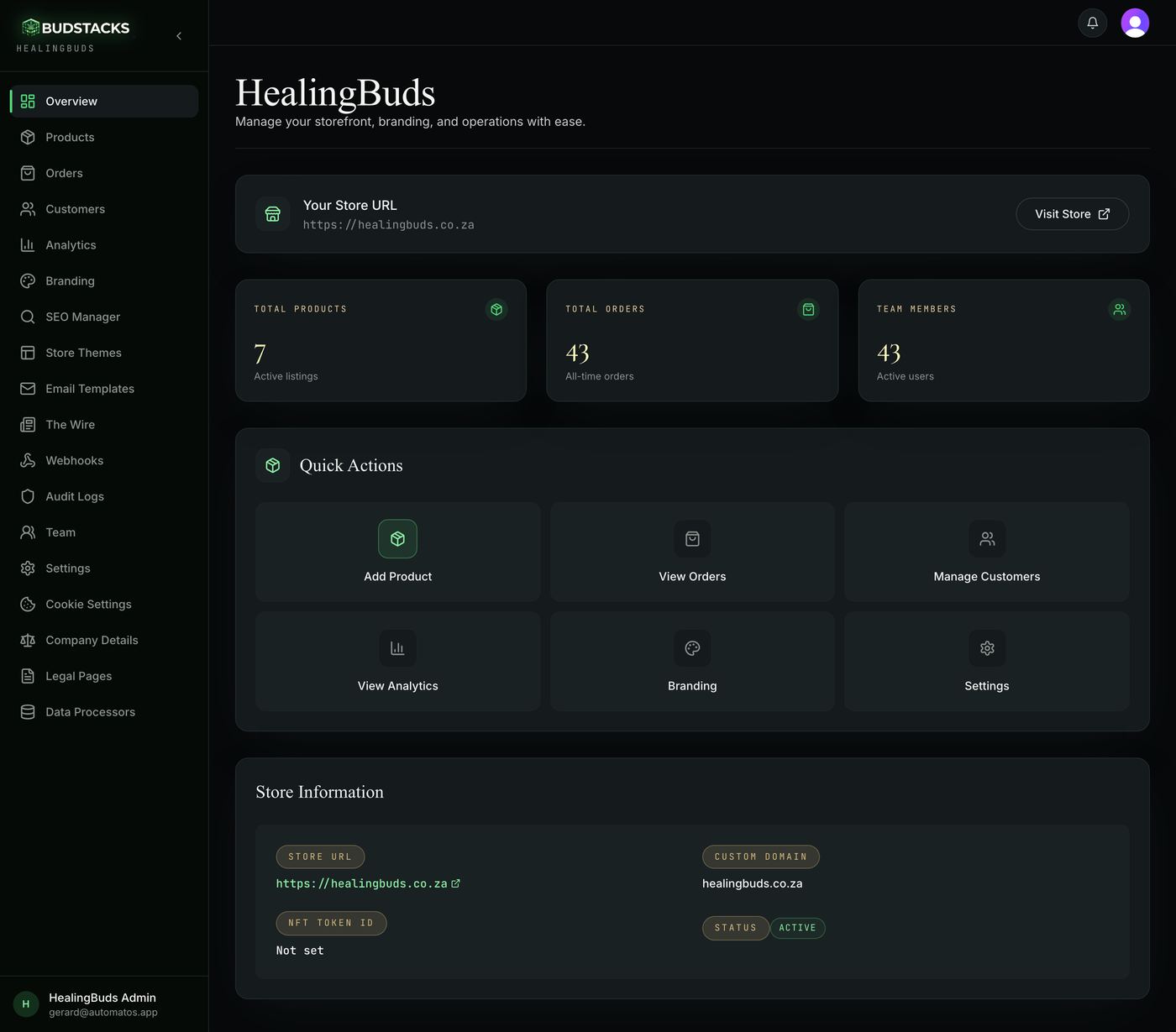
The first screen after you sign in. It answers three questions in one look: is my shop up, how big is my range, and how much has come through the till.
What it does
- Your business name is the page title — if it reads wrong, that is the name customers see too, and it is fixed in Settings.
- Your Store URL sits at the top with a Visit Store button, so you are one click from seeing your shop the way a customer sees it.
- Three counts: Total Products, Total Orders (all-time) and Team Members.
- The numbers are counted fresh every time the page loads — sync your products or take an order, and the next refresh shows it.
Try it: Your two-minute morning check
- Open Overview — the first item in the left menu. Your business name is the heading.
- Press Visit Store on the Your Store URL card.Your shop opens in a new tab. Check the homepage loads and that the products on it look right — this is the customer's view, not a preview.
- Come back to the tab you started in and read the three counts.Total Orders is every order you have ever taken, not today's. If it has not moved in days, that is the thing to act on.
- Press View Orders in Quick Actions and look at the Pending card at the top of that screen.That number is your work for the day — orders nobody has picked up yet. Part 3 covers what to do with them.
- Back on Overview, glance at Store Information: Status should read Active, and Custom Domain should show your own domain if you have one connected.
Why you’ll use it
Two minutes here tells you whether the shop is up, whether anything new came in overnight, and where the day's work is — without opening six screens to find out.
- · Total Orders and Total Products are all-time totals, so they barely move day to day. For today, this week and this month — with trends — use Analytics.
- · Team Members counts every account attached to your store. Your customers have accounts too, so this is usually far larger than your staff; the real staff list is on the Team page.
- · Total Products counts everything sitting in your catalogue, in stock or not.
Quick Actions
What it’s for
Six tiles to the screens owners open most, so the everyday jobs are one click from the front door instead of a hunt down the left menu.
What it does
- Add Product, View Orders, Manage Customers, View Analytics, Branding and Settings.
- Each tile just opens that page — nothing is changed or created from this screen.
Why you’ll use it
The left menu has eighteen entries. These six are the ones you will use daily, put where your eye already is.
- · The first tile says Add Product, but you never type a product in by hand. It opens the Product Catalogue, where you pull your range in from Dr Green with one button — Part 2 covers exactly that.
Store Information
What it’s for
The identity card for your store: the addresses it answers on, its reference from sign-up, and whether it is switched on.
What it does
- Store URL — the address BudStacks gave you. It always works, even after you add your own domain.
- Custom Domain — your own web address once it is connected. You type it into Settings, then support finishes the setup that points the domain at your shop.
- NFT Token ID — a reference recorded at sign-up for stores that came in through the Dr Green NFT programme. It is shown here and used nowhere else.
- Status — Active means your shop is live and answering on the addresses above.
Why you’ll use it
When something looks wrong with the shop, start here. It tells you which address customers should be on and whether the store is switched on at all — two questions that explain most “my site is down” scares.
- · “Not configured” next to Custom Domain and “Not set” next to NFT Token ID are both normal. Neither stops your shop working.
- · Status is a read-out, not a switch. If it ever says Inactive your shop stops answering on both addresses — that is a call to BudStacks, not something to fix here.