The BudStacks Guide · Part 2
The Catalogue
Your synced product range — where it comes from, what's in stock, and how the catalogue stays current.
In your admin: /tenant-admin/products
Where your products come from
What it’s for
You do not write your product range yourself. The products are medical cannabis strains held on the Dr Green platform — the supply system behind your shop — and BudStacks pulls a copy of them into your store with one button. Everything else on this page is managing that copy.
What it does
- Sync from Dr Green (top right) pulls the range available for your store's country and files it into your catalogue.
- Each sync adds anything new to you and refreshes what you already have — name, description, images, price and stock figure.
- It tells you what it did: “Synced 7 products (0 new, 7 updated)”.
- Prices arrive in your store's currency, converted from what Dr Green publishes, and shown with your country's symbol.
- A sync never deletes anything. Running it twice does no harm — it refreshes the same products rather than duplicating them.
Try it: Sync your catalogue and check a product
- Open Products in the left menu and press Sync from Dr Green in the top right.The button reads “Syncing…” while it works. A big range can take a few seconds — leave the page alone until it finishes.
- Read the message that appears.You should see something like “Synced 7 products (0 new, 7 updated)”. New means products that were not in your list before; updated means ones already there whose details were refreshed.
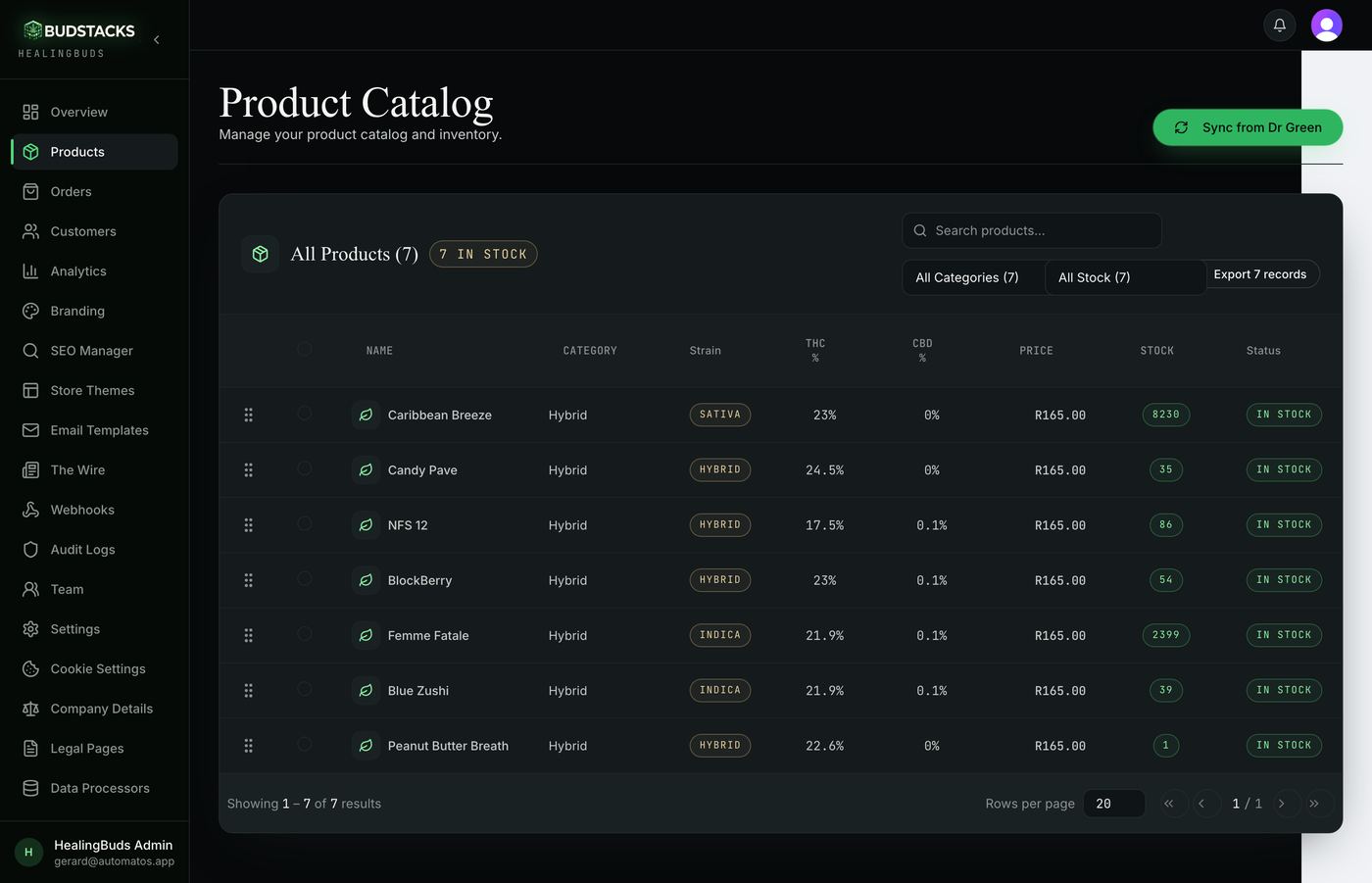
- Check the heading of the table: it now reads All Products with the total, and a pill beside it says how many are in stock.
- Find a product you know — type part of its name in the search box — and read its row: category, THC and CBD percentages, price in your currency, stock figure, and In Stock or Out of Stock.
- Now open your own shop's Products page (Visit Store on the Overview screen) and find the same product there.The shop reads its prices and stock live from Dr Green every time a customer looks, so that page is what shoppers actually see. The figures on this admin page are a snapshot from your last sync.
Why you’ll use it
One button keeps your shelves honest. You never retype a price, re-upload a photo or guess at stock — the people holding the product tell your store what they have, and your job is to notice what changed.
- · If the sync fails, the message almost always points back to Settings: your store's Dr Green API key and secret — the credentials that let the two systems talk. Until those are entered, both this button and your shop's product pages have nothing to read.
- · There is no “add your own product” here by design. Your range is the range Dr Green supplies for your country.
The catalogue list
What it’s for
Everything you have synced, twenty rows at a time, with the numbers a shopkeeper checks: what it costs, how much is left, and whether it is showing as in stock.
What it does
- Search by name or category — the heading count follows what you searched.
- Filter by category, or by stock (In Stock / Out of Stock), each option showing how many match.
- Sort by any heading with an arrow on it: name, category, THC %, CBD %, price, stock, or date added.
- Drag a row by the handle on its left to set your own running order — it saves the moment you drop it.
- Export downloads what you are looking at as a spreadsheet file: name, category, THC, CBD, price, stock, status and date added.
- Rows per page at the bottom goes up to 100.
Why you’ll use it
This is the fastest way to answer the questions customers and staff ask all day — what do we sell, what does it cost, and have we got any left — without logging into anything else.
- · The Strain pill on each row (Sativa / Indica / Hybrid) is worked out from the product's name, not from Dr Green's record, so it can disagree with the Category column beside it. Treat Dr Green's own listing as the truth until this is fixed.
- · The category filter offers shop-style categories — Flower, Edibles, Concentrates, Pre-Rolls, Topicals, Accessories. What arrives from Dr Green today is the strain type instead, so those filters often count zero even when your catalogue is full. Search is the reliable way to find one product.
- · Export takes the page you are on, not the whole catalogue. Set Rows per page to 100 first if you want the lot in one file.
- · Your drag order is your own arrangement and survives the next sync. It sets the order products are listed in for AI assistants (see Part 7, The SEO Manager). It does not reorder your shop's product page, which follows Dr Green's own order.
Stock and tidying up
What it’s for
Tick the boxes down the left of any rows and a bar appears at the bottom of the screen with the things you can do to all of them at once.
What it does
- Set In Stock / Set Out of Stock — changes the status shown on this page.
- Export CSV — the rows you ticked, and only those.
- Delete — takes the selected products out of your catalogue, after a confirmation that names them first.
- Every one of these is written to Audit Logs with who did it and when.
Why you’ll use it
Bulk selection is for tidying a long list quickly — pull a handful of rows into a spreadsheet for a supplier email, or clear out products you never sold. It is housekeeping on your own copy, not stock control.
- · Set In Stock writes a stock figure of 1 rather than restoring the real number, and the next sync replaces it with Dr Green's true figure. Real stock levels belong to Dr Green — these two buttons only tidy what this page shows.
- · Delete is not permanent. The product leaves this list, your sitemap and your SEO entries, but the next sync brings it back. There is no way from this page to hide a product from your shop for good.
- · Because your shop reads Dr Green directly, nothing you set here changes what a customer sees on the storefront.
How each product looks in search
What it’s for
The title and description Google shows when one of your product pages comes up in results are not edited on this page — they live in the SEO Manager, on its Products tab, which lists the same products you synced here.
What it does
- The SEO Manager's Products tab lists every synced product and lets you write its search title and description.
- A product has to be synced first: with an empty catalogue that tab says “No products found. Sync products from Dr Green first.”
- Synced products are also the ones published in your sitemap — the map of your shop that search engines read — so syncing is what puts a product page on Google's radar at all.
Why you’ll use it
The strain description that arrives from Dr Green is the same one every other store gets. The words you write in the SEO Manager are the ones that make your listing the one worth clicking.
- · Part 7, The SEO Manager, covers that Products tab in full — including what a good title and description look like.