The BudStacks Guide · Part 17
The Legal Pages
Terms, privacy, cookies, and regulatory pages — maintained wording or your own.
In your admin: /tenant-admin/legal/documents
Four documents
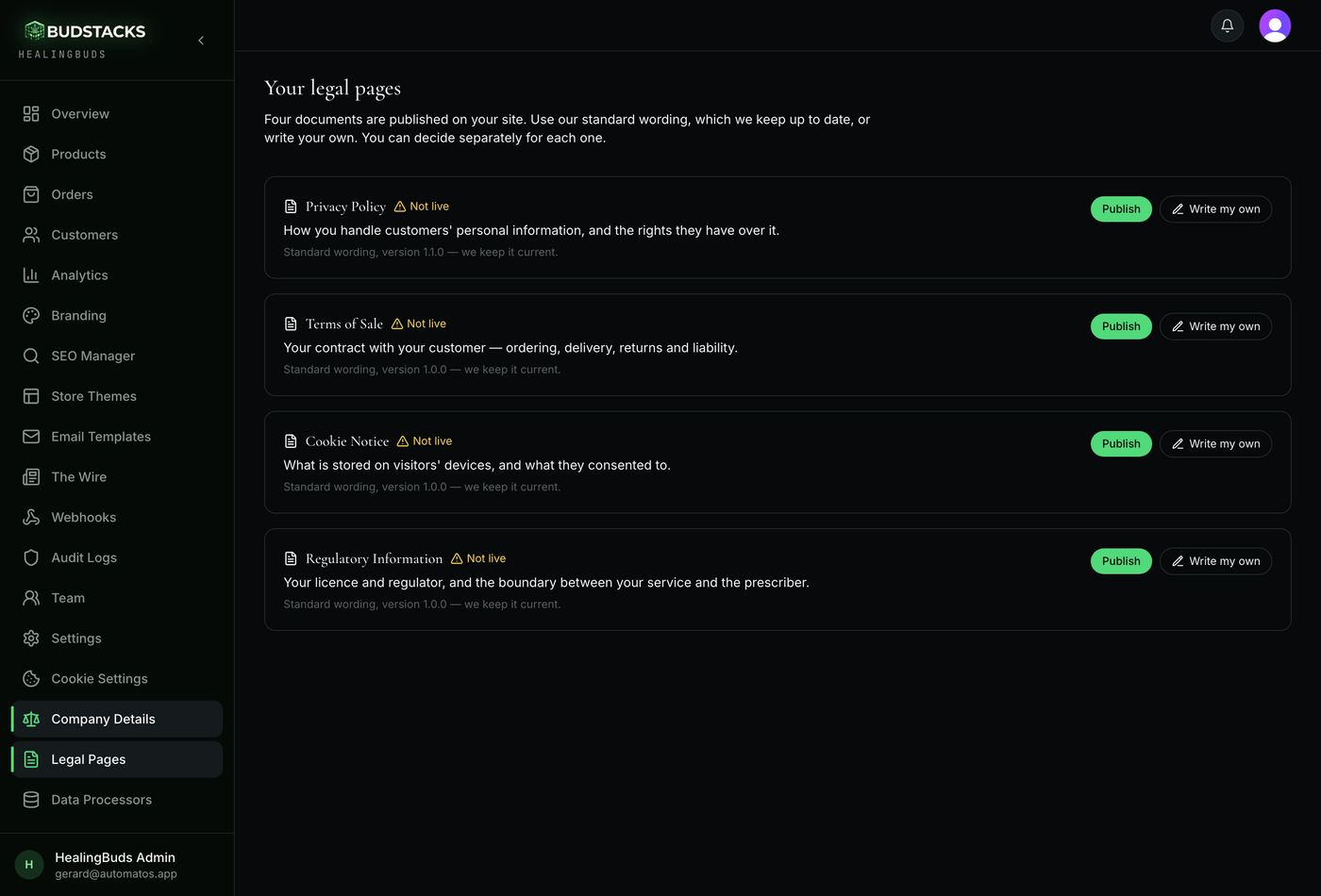
What it’s for
Four legal pages are published on your own domain, in your storefront's colours, naming your business. This screen is where each one is turned on.
What it does
- Privacy Policy — how you handle customers' personal information, and the rights they have over it. Lives at /privacy.
- Terms of Sale — your contract with your customer: ordering, delivery, returns and liability. Lives at /terms.
- Cookie Notice — what is stored on visitors' devices, and what they agreed to. Lives at /cookies.
- Regulatory Information — your licence and regulator, and the line between your service and the prescriber. Lives at /regulatory.
- All four are built from the details you entered under Company Details (Part 16), so they name your company rather than the platform.
Why you’ll use it
These are the pages that make a storefront a business rather than a shopfront. They are already drafted, already correct for a prescription-based cannabis service, and waiting on nothing but your details and a click.
- · Your storefront footer links to these pages, though which of the four appear depends on the footer your theme uses. All four are reachable by address regardless.
- · This screen needs the Edit settings permission — team members without it will not see it in the menu.
- · Every publish and every switch of wording is recorded in Audit Logs.
Standard wording, or your own
What it’s for
Each document is an independent decision: keep the wording BudStacks maintains, or replace it with text of your own. You can mix — standard privacy, your own terms — and change your mind either way.
What it does
- Standard wording is the default, and the row states it plainly — “Standard wording, version … — we keep it current” — naming the version that document is on. When the law moves we update the text; you republish to take it.
- Write my own opens a confirmation first, in plain terms: it becomes your document, you are responsible for its content and for keeping it current, and our updates stop reaching it. Who accepted that, and when, is recorded.
- Your own text is written in Markdown — ## for a heading, **bold**, and - for a list. The editor reminds you above the box.
- Preview, inside the editor, renders your text exactly as the storefront will produce it for customers.
- Use standard wording puts the maintained text back and republishes it. Your own text is kept, so switching back later costs nothing.
Why you’ll use it
Most owners never need to write a word — the maintained wording is the point of the feature. But if your lawyer has drafted terms you must use, you are not locked out of your own legal pages to keep the convenience.
- · A document set to your own wording with nothing written is refused at publish rather than published empty — you are told to write it or switch back.
- · Preview only exists for your own wording. There is no way to read the standard terms, cookie notice or regulatory page before publishing them; the privacy notice is the exception, previewable on Company Details.
Publishing, and the Live badge
What it’s for
Every row carries a Live or Not live badge. It is not a record of what you intended — the badge is worked out by resolving the document exactly the way your storefront does, so it reports what is genuinely being served.
What it does
- Live, in green: the page is being served on your domain. A View button appears beside it and opens the real thing.
- Not live, in amber: visitors reaching that address are told the document has not been published, are given your business name, and are asked to contact you.
- Publish (or Republish) on a standard document is a single button — there is nothing to write.
- Publishing your own wording is done from inside the editor, alongside Save draft and Preview.
- Nothing on this screen ever serves the BudStacks platform's documents on your domain. If yours is not published, the page says so honestly instead of substituting ours.
Try it: Preview and publish your four pages
- Publish your Company Details first (Part 16). The standard wording cannot go live until you have.Without it, rows here stay Not live however many times you press Publish — the documents have no company to name.
- Open Legal Pages. You should see four rows: Privacy Policy, Terms of Sale, Cookie Notice, Regulatory Information.
- Press Publish on Privacy Policy.You should see the row flip to a green Live tick, and a View button appear beside it.
- Press View. The page opens on your own domain, in your storefront's colours, with your company named in the opening line and a “Last updated” date underneath.
- Do the same for the other three.If a row stays Not live, that document is missing a detail it needs: terms wants a governing law and a support email, regulatory wants your regulator, the cookie notice wants your privacy contact. Add it on Company Details and publish here again.
- Only if you have wording of your own to use: press Write my own, read the confirmation, paste your text in, press Preview to check how it renders, then Publish.From that point the document is yours — our updates no longer reach it, and keeping it current is on you.
Why you’ll use it
Four correctly worded legal pages, naming your business, on your own domain, without drafting them and without remembering to revisit them when the law changes. The badge means you never have to guess whether it worked.
- · A row that stays Not live does not yet say why. The reason is always the same shape: a required detail on Company Details is missing, or your own wording is empty.
- · Publishing all four is the sensible default even if you think one does not apply. An unpublished page is a visible gap on your storefront.