The BudStacks Guide · Part 14
The Engine Room
The connections that power your store — domain, Dr Green, verification, AI, and email sending.
In your admin: /tenant-admin/settings
One page, five cards
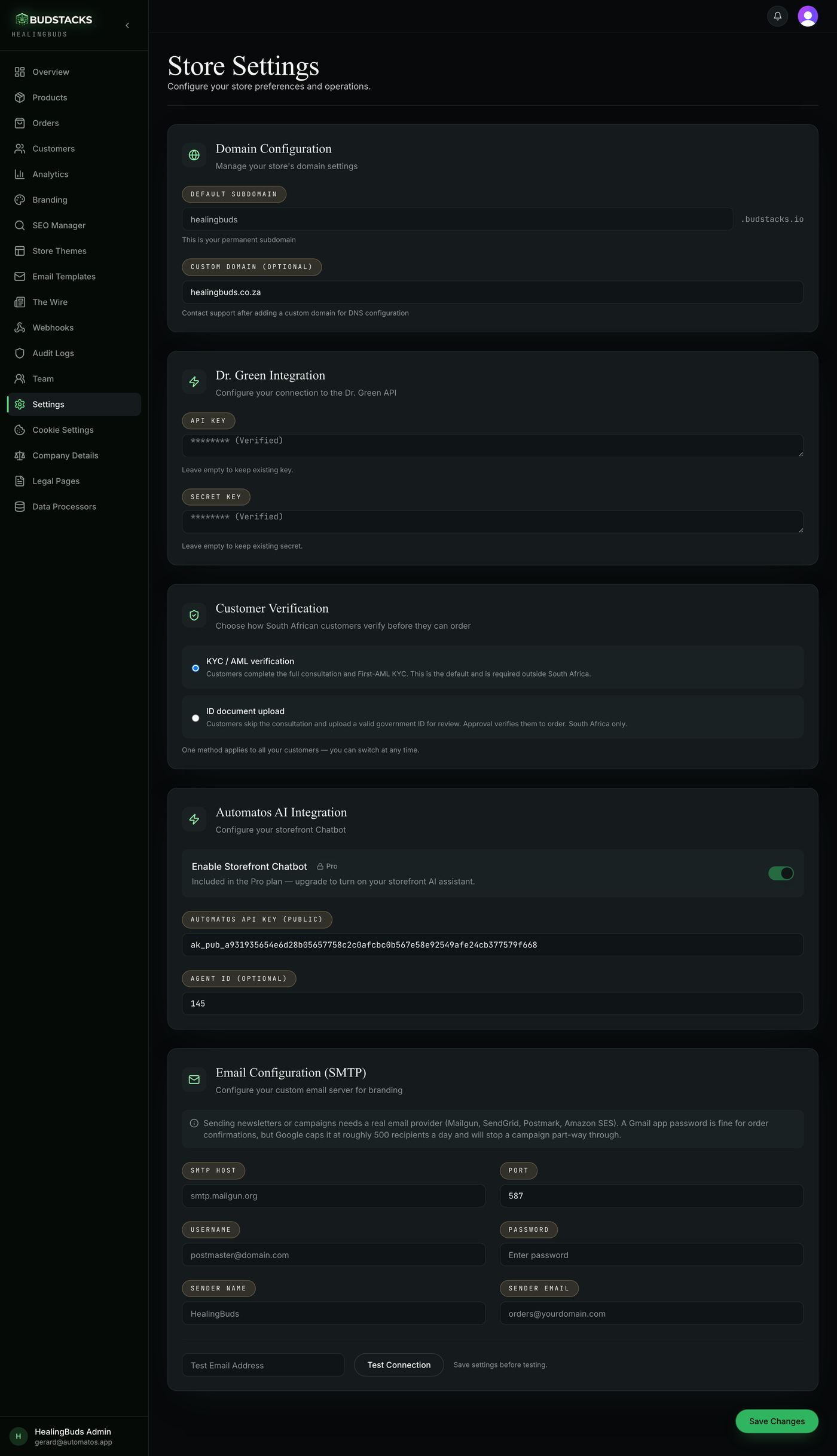
What it’s for
Everything that connects your shop to the world outside it: the address customers type, the supplier feed behind your catalogue, how customers prove who they are, your AI assistant, and the address your emails leave from.
What it does
- Five cards on one scrolling page: Domain Configuration, Dr. Green Integration, Customer Verification, Automatos AI Integration and Email Configuration.
- One Save Changes button at the very bottom saves the whole page at once — there is no per-card save.
- Customer Verification only appears if your store's country is South Africa. Everyone else sees four cards.
- Anything already stored and secret shows as “******** (Verified)” rather than the real value. Leave those boxes empty and what is stored stays as it is.
- Every save is written to the Paper Trail, so there is always a record of who changed the store's connections and when.
Why you’ll use it
These five cards are the difference between a shop that looks right and a shop that works. Nothing here is cosmetic — each card is a live connection to another system, and each one is worth understanding once so you never have to guess at it during an outage.
- · Change one thing at a time, and save between changes. If something stops working, you want to know which change did it.
- · The credentials on this page belong on this page and nowhere else. Nobody from BudStacks or Dr Green will ever ask you to email or message them a secret key — a request like that is the request itself being the fraud.
- · This screen is only reachable by roles you have granted Edit settings in Roles & permissions. That switch is worth being sparing with: it also unlocks the roles matrix itself.
Domain Configuration
What it’s for
The addresses your shop answers on. One is the address BudStacks gave you and always works; the other is your own web address, once it is connected.
What it does
- Default Subdomain is shown greyed out with your platform address beside it. It is permanent and cannot be edited here.
- Custom Domain is a single box for a domain you already own — yourdispensary.com.
- Saving records the domain against your store. The note under the box says the rest: contact support so the DNS side can be set up.
- If your store has the AI chatbot connected, changing this address also tells Automatos about the new one, so the chat bubble keeps working when the domain switches over.
Try it: Connect your own domain
- Buy the domain first, wherever you normally buy domains. Nothing here registers one for you.
- Type just the domain into the Custom Domain box — yourdispensary.com.No https://, no www, no trailing slash. Visitors who type www get sent to the plain address for you once it is live.
- Press Save Changes at the bottom of the page.You should see “Settings updated successfully”. Nothing has changed for customers yet — the domain does not point at your shop until the DNS work is done.
- Contact BudStacks support and tell them the domain you entered. They finish the certificate and DNS setup at their end.
- Once they confirm, open Overview and check Store Information shows your domain against Custom Domain, then visit it.Your original budstacks.io address keeps working forever. It is the way back in if anything ever goes wrong with your own domain.
Why you’ll use it
Your own domain is what makes the shop look like a business rather than a page on someone else's platform. It is also yours to keep: search rankings, links and bookmarks accumulate against an address you control, not one you rent.
- · Emptying this box sends customers back to your subdomain, but it does not undo the DNS setup — tell support if you are moving away from a domain for good.
- · Nothing checks the domain you type. A typo saves cleanly and simply never works, so read it back before saving.
Dr. Green Integration
What it’s for
Two keys that let your store talk to Dr Green. Your catalogue comes in through them, and orders and consultations go out through them. This is the single most important connection on the page.
What it does
- API Key is the public half, Secret Key the private half. Paste each into its box and press Save Changes.
- Once saved, neither is ever shown again — both boxes read “******** (Verified)”. Leaving them empty on a later save keeps what is stored.
- Both are encrypted before they are written down, and the secret key never leaves the server.
- The secret key is tested on the way in: the store tries to sign something with it, and if it cannot, the save is refused with a message asking you to re-paste. A broken key is caught here rather than at a customer's checkout.
- Either format Dr Green hands out is accepted — the long single-line block, or the multi-line one that starts with -----BEGIN.
- If the two keys are pasted into the wrong boxes, the store recognises the mistake and uses them the right way round.
Why you’ll use it
Nothing in the shop works without this. Products, prices, stock, the consultation, the order itself — all of it travels over this connection. Ten minutes getting it right is the reason the rest of the admin has anything to show.
- · Treat the secret key like the keys to the till. Never paste it into an email, a chat, a support form or another website.
- · There is no Test Connection button on this card. To check the keys work, open Products and run a sync — if the catalogue comes back, the connection is good.
- · A wrong key does not announce itself. The admin looks perfectly normal and the failure lands on a customer trying to order, so place a test order after changing them.
- · Some stores run on a platform-wide Dr Green connection instead of their own. If your catalogue works with these boxes empty, that is why — do not paste keys in to “fix” something that is not broken.
Customer Verification
What it’s for
How South African customers prove who they are before they are allowed to order. One method applies to your whole store — this is a choice between two, not a set of options to combine.
What it does
- KYC / AML verification: the customer completes the full consultation and the First-AML identity check. This is the default, and the only option outside South Africa.
- ID document upload: the customer skips the consultation and uploads a valid government ID instead. Once it is approved they are verified to order. South Africa only.
- You can switch between them at any time, and the card says so.
- The whole card is hidden unless your store's country is South Africa — the ID-upload route cannot be turned on anywhere else, whatever is stored.
Why you’ll use it
Every step between arriving and ordering costs you customers. Where the shorter route is permitted, it is the difference between a customer who finishes and one who gives up part-way through a medical questionnaire.
- · Switching does not re-verify anyone. People already verified stay verified; the change applies to customers who have not been through it yet.
- · The upload route also has to be switched on at platform level. If your customers report that the upload step is missing, that is the thing to ask BudStacks about — not this setting.
- · Whichever route you choose, an uploaded ID is reviewed by a person. Approval is not instant, and the customer cannot order until it lands.
Automatos AI Integration
ProWhat it’s for
The AI chat bubble on your storefront, and the account behind the AI features elsewhere in the admin.
What it does
- Enable Storefront Chatbot is the switch that puts the chat bubble on your shop.
- Provision automatically creates the Automatos workspace and its key for you in one press, and turns the chat on. The key it creates is locked to your store's addresses, so it cannot be lifted and used on another site.
- Automatos API Key is where you paste a key you already have. It begins ak_pub_ and is the public half, which is why it is shown in full rather than masked.
- Agent ID is optional — a number that points the bubble at one particular assistant instead of the default.
- The same connected account powers the SEO Manager's AI drafting and its AI Citations screen.
Why you’ll use it
A chat bubble that can actually answer questions about your products works the hours you do not. For a shop where most questions are the same ten questions, it is the cheapest support hire you will ever make.
- · As things stand, this card reads as locked on every store, including Pro ones: the switch shows a Pro chip, cannot be moved, and the Provision automatically button does not appear. The check behind it is not reading your store's plan. It is a known fault, listed below — it is not a statement about what you have paid for.
- · The key and Agent ID boxes are not locked, so a key can be saved. The switch is what stays stuck, so the bubble will not appear from a save alone.
- · A store that already had the chatbot switched on keeps it switched on. Saving other settings does not turn it off.
- · The AI features in the SEO Manager check your plan correctly, so they are unaffected by the fault above.
Email Configuration (SMTP)
What it’s for
Your store's own sending address. Fill this in and order confirmations and newsletters leave from your domain instead of a shared BudStacks address.
What it does
- Six boxes: Host, Port, Username, Password, Sender Name and Sender Email. Port defaults to 587.
- The password is encrypted before it is stored and shows as “******** (Verified)” afterwards. Leaving it blank on a later save keeps the stored one.
- Test Connection sends a real test email to whatever address you type beside it. It is greyed out until a password has been saved, and the line beside it says so.
- A failed test comes back in plain words — the username or password was wrong, the server could not be reached, the connection timed out, the address was rejected.
- The card carries the warning that matters most: sending newsletters needs a real email provider (Mailgun, SendGrid, Postmark, Amazon SES). A Gmail app password is fine for order confirmations, but Google caps it at roughly 500 recipients a day and will cut a campaign off part-way through.
- If these boxes are empty, or the connection fails when a message goes out, the email is still sent on the platform's own sender. It simply does not come from your domain.
Try it: Set up your sending address
- Open an account with an email provider and verify your domain with them. They will give you sending credentials — some call them SMTP credentials, some hand you an API key that you use as the password.This step is at the provider, not here. It is the step that makes your mail trusted, and it cannot be skipped.
- Fill in Host and Port from what they gave you — 587 unless they say otherwise — then Username and Password.
- Set Sender Name to your shop's name and Sender Email to an address at the domain you just verified, such as [email protected].A “from” address at a domain your provider does not own is the single fastest way into a spam folder.
- Press Save Changes at the bottom of the page.You should see “Settings updated successfully”, and the Password box should now read “******** (Verified)”.
- Type your own email address into the Test Email Address box and press Test Connection.You should see “Connection Successful! Test email sent.” and the test should land in your inbox within a minute. If it does not, the reason is on screen — fix it and save again before retesting.
Why you’ll use it
Mail from your own domain arrives more reliably, looks like you, and can be replied to. It also puts the sending limits in your hands rather than sharing someone else's — which is the difference between a newsletter that reaches your whole list and one that stops halfway.
- · Test Connection tests what has been saved, not what is on screen. Save first, then test — otherwise you are testing yesterday's settings.
- · The password is encrypted at rest, but it is still a live credential to your email provider. Anyone who can open this page can change it, so keep Edit settings to people you trust.
- · Newsletters and campaigns from the Email Hub leave through this connection. If a campaign stalls part-way through, this card is the first place to look — see the guidance printed on it about provider limits.