The BudStacks Guide · Part 8
The Theme Library
Whole-store designs — switch, clone, and customise your storefront's foundation.
In your admin: /tenant-admin/templates
What a theme is
What it’s for
A theme is your store's whole design foundation: which sections exist, how they are built, the stylesheet behind them, and the colours, fonts and wording they start from. Branding then customises what the theme gives you.
What it does
- One theme is Active at a time. That is the design your customers see.
- Every other theme you own sits in My Themes doing nothing — with whatever customising you did to it still intact.
- Changing theme changes the foundation. Changing branding changes your version of that foundation.
- Each theme has its own Customize button, which opens it in the Store Editor described in Part 6, The Look.
Why you’ll use it
This is the difference between redesigning your store and rebuilding it. You can try a completely different look, work on it privately for a week, and move your customers across only when it is finished.
- · Branding always applies to a specific theme. Two themes can have completely different colours and logos, and neither knows about the other.
My Themes
What it’s for
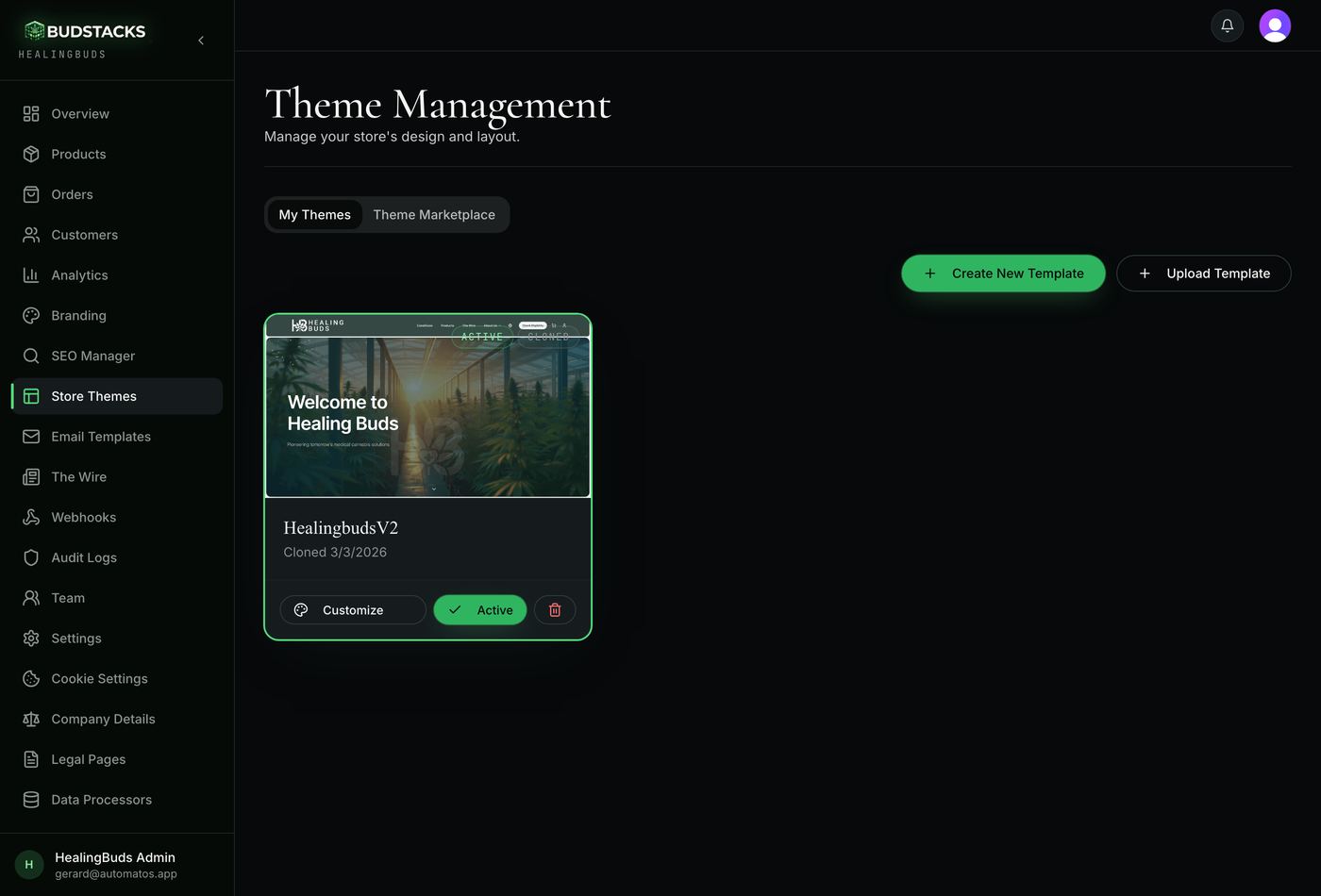
Every design your store owns. One of them is live; the rest are yours to work on, keep as a fallback, or delete.
What it does
- The active theme is outlined and carries an Active chip. Everything else is available and doing nothing to your live site.
- Customize opens that theme in the Store Editor — brand, layout and content.
- Activate switches your storefront to that theme.
- Delete is refused while a theme is active, so you cannot take your own shop down by accident. Activate another one first.
- Create New Template starts a blank design and drops you straight into the Store Editor to build it.
- Upload Template pulls a design in from a public GitHub repository — for designers and agencies who build their own. It needs template.config.json, layout.json, defaults.json and styles.css.
- A design you built yourself can be shared to the marketplace for review; its status shows on the card, along with the reviewer's comments if changes were asked for.
Why you’ll use it
Your storefront is your shop window, and shop windows change. Holding several designs at once means the seasonal one, the one you are still working on, and the one currently earning can all exist without competing.
- · Cloned means the design started life in the marketplace. Custom means you built or uploaded it.
- · Deleting a theme takes the customising you did to it with it. The marketplace design it came from is still there to clone again.
Theme Marketplace
What it’s for
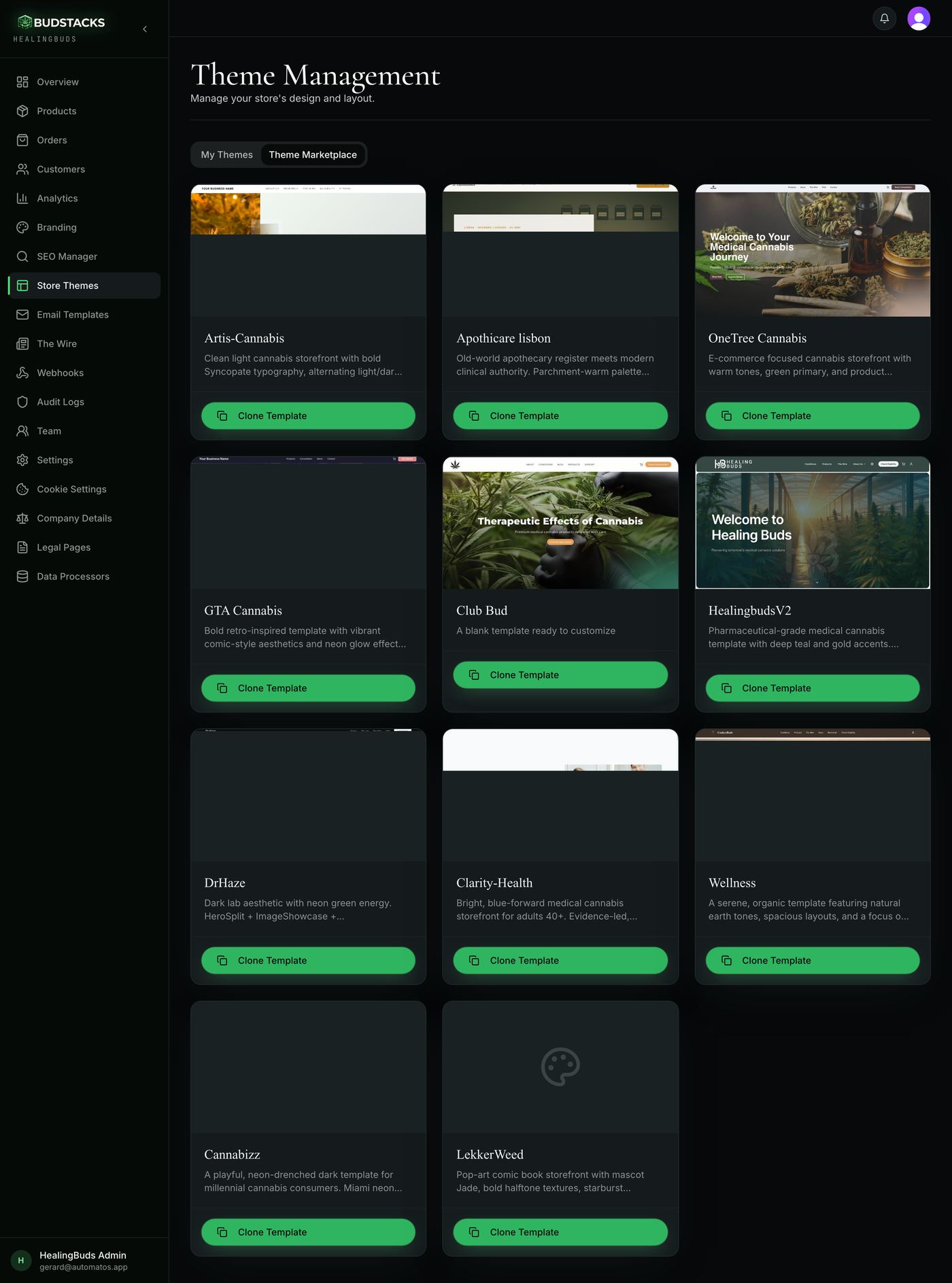
The catalogue of designs available to your store — the ones BudStacks maintains, plus those shared by other store owners. Browsing costs nothing and changes nothing.
What it does
- Each card shows a preview, a description and who built it. Community means another store owner made it; Premium is marked with its own chip.
- Live Demo, where a theme has one, opens the real thing full-size in a new tab.
- Clone Template copies the design into your store as your own theme. It appears in My Themes and does not touch your live site.
- A clone is a copy, not a link. Customise it however you like — later versions of the original will never overwrite your work.
Try it: Try a new look without losing your current one
- Open Theme Marketplace and find a design you like. Use Live Demo to see it at full size first.
- Press Clone Template.You should see the button read “Cloned!” and the design appear in My Themes marked Cloned. Your storefront has not changed — cloning never activates anything.
- Go to My Themes and press Customize on the new theme.
- Make it yours in the Store Editor — logo, colours, wording — then press Publish Site.Still nothing has changed for your customers. You are publishing edits to a theme that is not the live one.
- When it is ready, come back to My Themes and press Activate on it.Your old theme stays in the list with all its customising intact, so going back is one click if you change your mind.
Why you’ll use it
A redesign normally means committing before you can see the result. Cloning removes the commitment: you build the new shop beside the old one, look at it properly, and only then decide.
- · A clone starts from the theme's own colours, fonts and wording. It does not inherit the branding you did on your current theme — that is what makes it a genuinely different look, and it does mean uploading your logo again.
- · Cloning the same design twice gives you two independent copies, which is a perfectly reasonable way to try two directions at once.