The BudStacks Guide · Part 10
The Wire
Your store's own news channel — articles that inform customers and feed your search presence.
In your admin: /tenant-admin/the-wire
Your articles
What it’s for
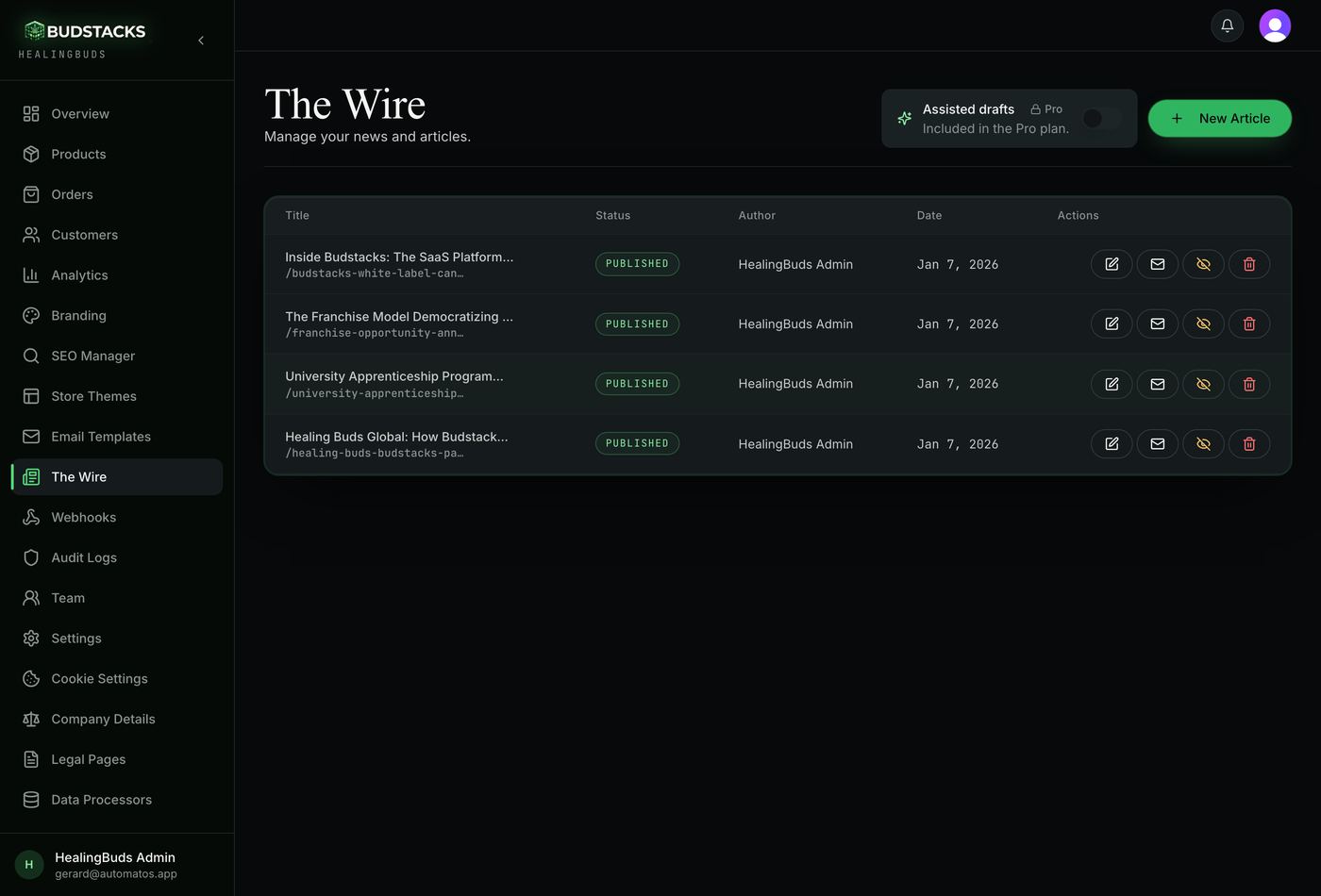
The page you work from. Everything your store has written lives here, and the four icons on each row cover almost everything you will ever do to an article.
What it does
- Each row shows the title, the web address the article lives at, whether it is Published or a Draft, who wrote it, and when.
- The eye icon publishes and unpublishes in one click — no re-opening, no re-saving. Unpublishing takes the article off your site straight away and keeps it here as a draft.
- The pencil opens the article in the editor. The bin deletes it, after a confirmation.
- The envelope, on a published article, turns it into a newsletter draft — the walkthrough below.
- Articles produced in assisted mode arrive here carrying an Automatos label, as drafts, for you to read before anything goes live.
Try it: Turn an article into a newsletter
- Find a published article and click the envelope icon on its row.The icon only appears on published articles — the email links to the live page, so there has to be a live page.
- Wait a moment. You should see “Newsletter draft created”, and you land in the email composer with the article already laid out as an email.
- Read it through. The cover image, headings and text come across; a Read more button at the bottom points back at the article on your site.Anything an inbox cannot show — an embedded video, for instance — is left behind on the way in. That is why you review before sending.
- Choose your audience, press Send test, then send. This is all covered in Part 9, The Email Hub.Nothing was sent by clicking the envelope. It only ever creates a draft — the send is still your decision, made in the composer.
Why you’ll use it
One piece of writing, two audiences: the people who find you on Google months from now, and the customers sitting in your list today. Writing it twice is the only version of this that costs you anything.
- · No envelope on your rows? The newsletter action belongs to email permissions, not article permissions — a store owner can grant it in Part 13, The Team Room.
- · Unpublishing is not deleting. The article comes straight back with the eye icon, exactly as you left it.
Writing an article
What it’s for
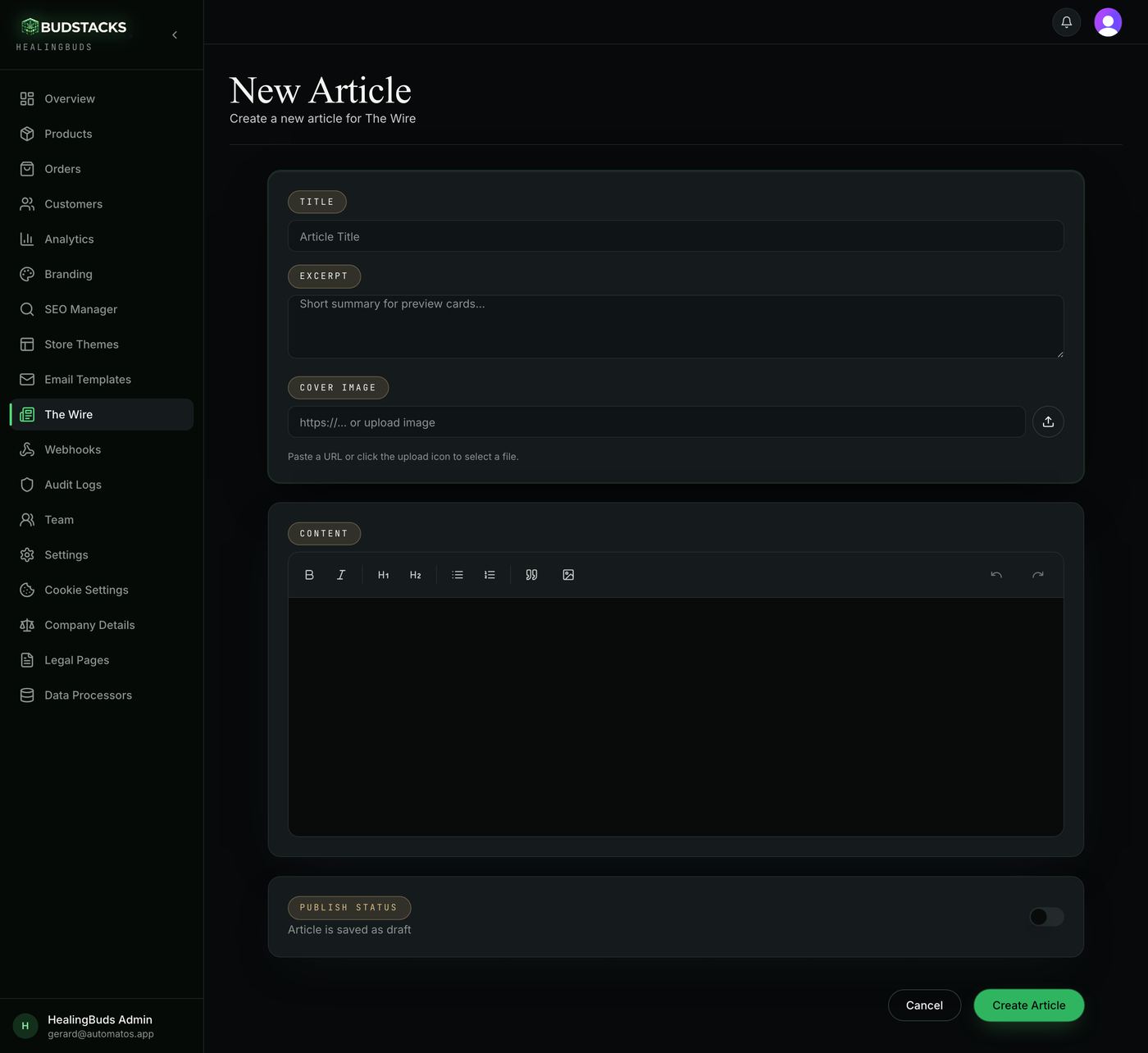
Where an article gets written. The body works like a word processor — headings, bold, lists, links and images from a toolbar — and the fields around it decide how the article looks when someone shares it or finds it.
What it does
- A title and a body are all that is required. Everything else makes the article work harder.
- Excerpt is the one- or two-sentence summary shown on article cards and previews.
- Cover Image takes a file you upload or a web address you paste, and shows you the picture before you save.
- Cover Image Alt Text describes that picture for screen readers and for image search. Leave it empty and the article title is used instead.
- Publish Status decides what saving does: put the article live, or keep it as a draft.
- Article URL — on an article that already exists — lets you change the address it lives at. Read the note below before you do.
- On Pro, with Automatos AI connected, a Generate button drafts the alt text for a saved article so you have something to edit rather than a blank box.
Try it: Publish your first article
- On The Wire, press New Article.
- Give it a title, then write the body underneath. The toolbar has headings, lists, links and images.Write the piece you would want to read as a customer — what a strain is for, how the consultation works, what changed in the law this month.
- Fill in the excerpt: one or two sentences that make someone want to open it.This is the text on the article card, so write it for a reader, not for a search engine.
- Add a cover image, then describe it in the alt text box that appears under it.
- Turn Publish Status on and press Create Article.You should land back on The Wire with your article at the top of the list and a green Published pill. It is live on your site now, at /the-wire/ followed by its web address.
Why you’ll use it
Product pages answer “what do you sell”. Articles answer “why should I trust you” — and they are the pages that bring people who have never heard of your shop in from a search.
- · Renaming an article's web address moves the article. On Pro, saving points the old address at the new one automatically, so existing links and search rankings follow it; the editor tells you which of those two things is about to happen before you save. On Basic the old address stops working, and you can add the redirect yourself in Part 7, The SEO Manager, under Redirects.
- · The URL box only appears on an article that already exists. A brand-new one takes its address from its title, because there is no old link to protect yet.
- · Images you upload are stored permanently. An article you wrote a year ago will still have its pictures.
Assisted drafts
ProWhat it’s for
The switch at the top of The Wire. Manual means the only articles here are the ones you write. Assisted lets Automatos AI deliver draft articles for your store, which arrive in the same list for you to review.
What it does
- Two settings, one switch. Every store starts on Manual.
- In Assisted mode, drafts appear in your article list carrying an Automatos label.
- Nothing written for you goes live on its own. A draft stays a draft until you read it, edit it in your own voice, and publish it.
- Switching back to Manual stops new drafts arriving. Anything already written stays in your list.
- The switch is part of the Pro plan. On Basic it shows a Pro label and stays off.
Why you’ll use it
The reason most storefronts have three articles and then stop is that the blank page wins. Having a draft waiting turns writing into editing, which is a job an owner can actually do between orders.
- · The label on the row is there for you, not for customers — it never appears on the published article.