The BudStacks Guide · Part 11
Webhooks
Real-time notifications to other systems when things happen in your store.
In your admin: /tenant-admin/webhooks
Your endpoints
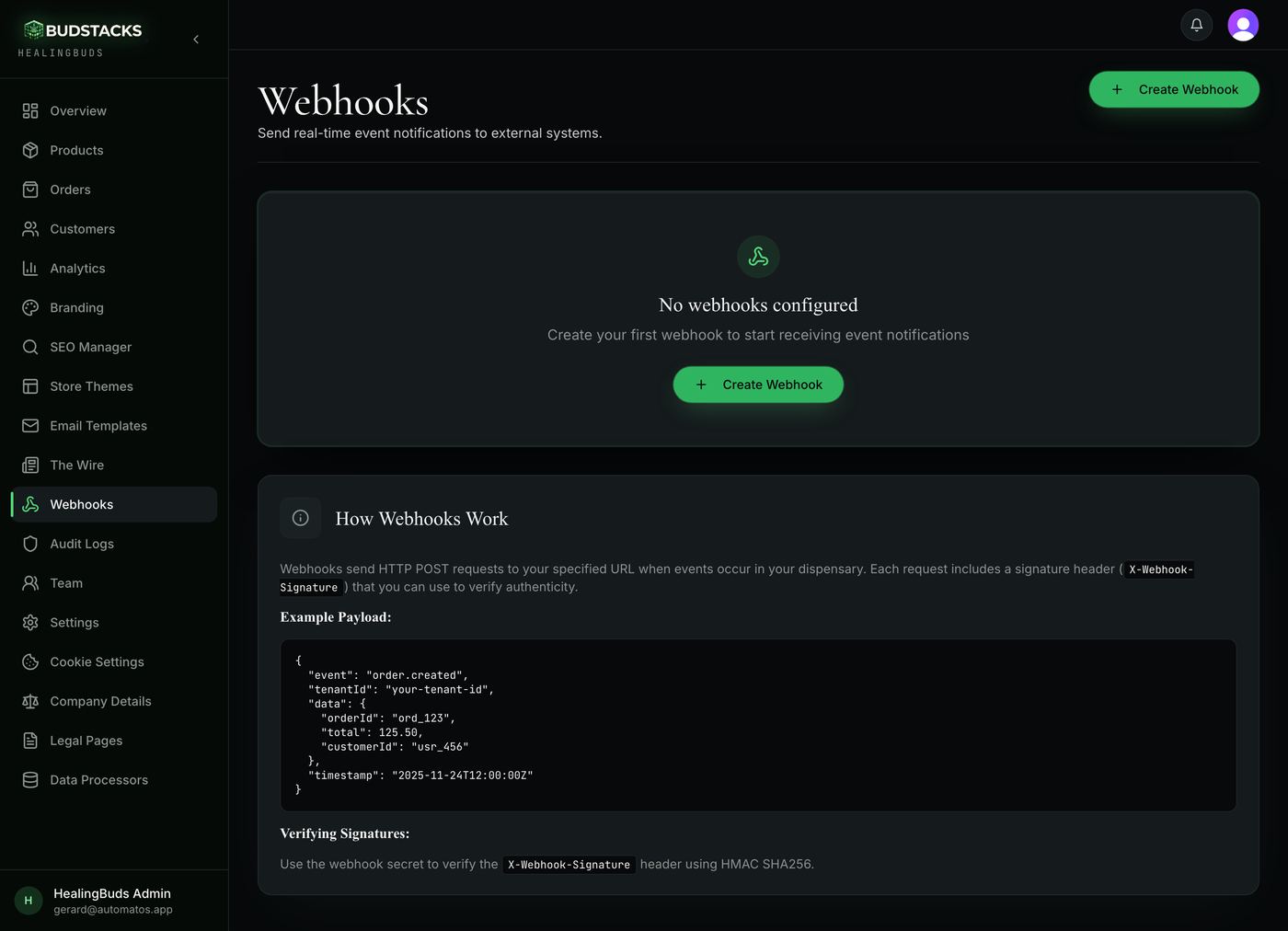
What it’s for
This screen is for your developer, or for a tool somebody is connecting to your store. It lists the addresses your shop sends a message to whenever something happens — an order comes in, a customer is verified. If nobody has asked you for it, you can close this tab: your shop does not need anything here to work.
What it does
- Each endpoint is one card: the address it sends to, an Active or Inactive chip, your description of it, the events it has subscribed to, its signing secret, how many deliveries it has had and the date it was set up.
- Disable pauses an endpoint without losing its setup; Enable starts it again. The bin deletes it, after a confirmation.
- The signing secret is hidden behind dots with a Show button beside it. The receiving system uses that secret to prove a message really came from your store and not from someone imitating it.
- Every message your store sends carries a signature header, and the card at the bottom of the page shows a developer exactly what a message looks like and how to check that signature.
- Only public https addresses are accepted. An address on a private or internal network is refused with “Use a public HTTPS endpoint” — that is a deliberate protection, not a bug.
Why you’ll use it
This is how your store connects to something BudStacks does not do itself — an accounting package, a stock system, an internal alert in a chat channel. Instead of another system asking “anything new?” every few minutes, your store tells it the moment something happens.
- · Nothing on this screen touches your storefront or your customers. An endpoint that is wrong, disabled or deleted changes nothing a shopper sees.
- · The secret can be revealed by anyone who can open this page. Treat it as a password: share it with the person building the receiving end, and nobody else.
- · Deleting an endpoint is immediate and cannot be undone. If you are not sure, Disable it and come back.
- · The delivery count on each card stays at zero, and View delivery logs opens a page that has not been built yet. The messages themselves are sent — it is the record of each individual attempt that is not being kept today.
- · A delivery that fails is not retried at the moment, for the same reason. If the receiving system was down, that message is gone rather than queued.
Adding an endpoint
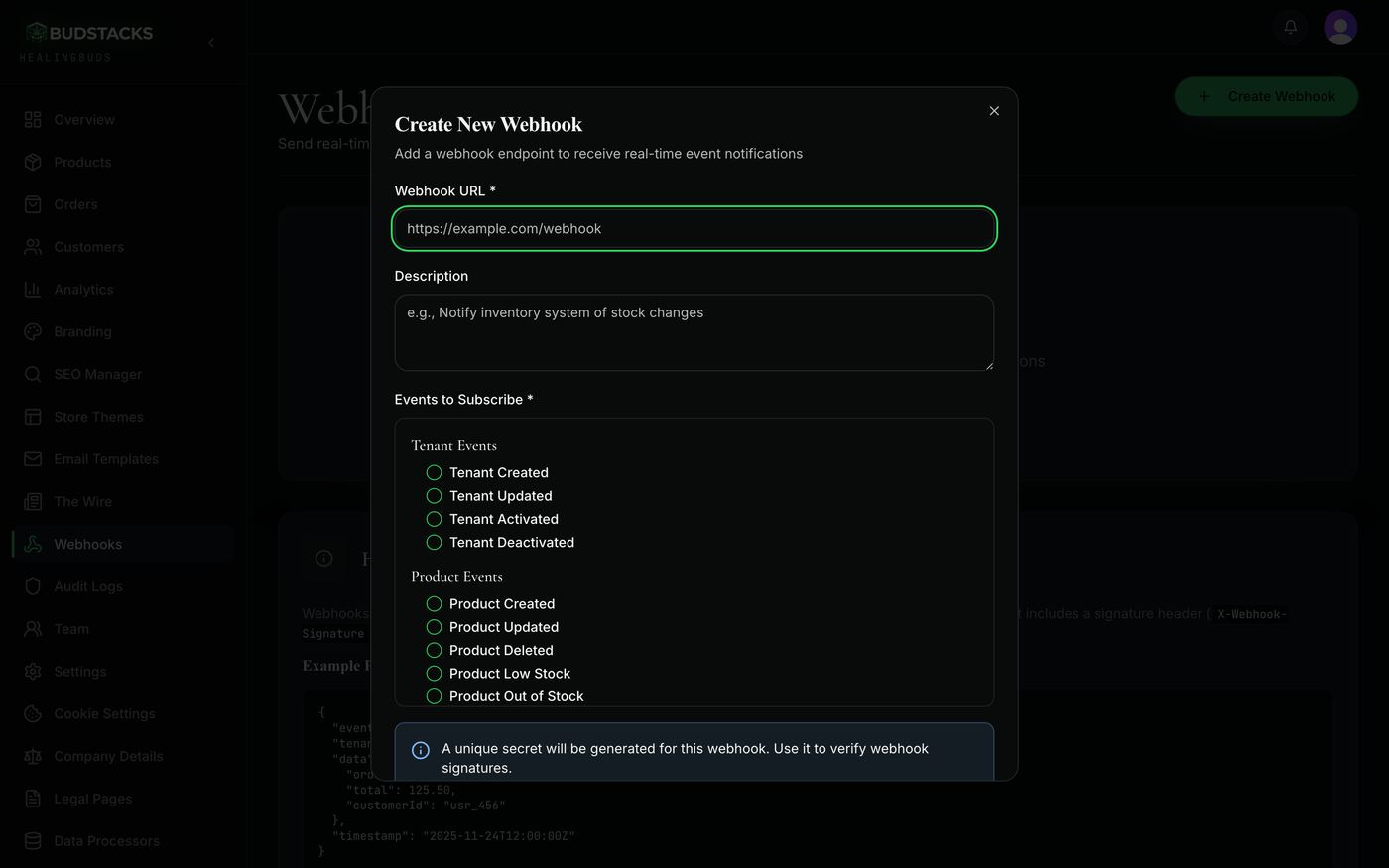
What it’s for
The form behind Create Webhook. Whoever is building the receiving end gives you the address; you choose which events are worth sending to it.
What it does
- Webhook URL is required and must be a public https address.
- Description is a note to your future self — “notifies the stock system” — and appears on the card.
- Events to Subscribe is required, and at least one must be ticked. They are grouped as Tenant, Product, Order, Consultation, KYC and Inventory events.
- A note in the form says a unique secret will be generated for this endpoint. You do not choose it.
- The endpoint starts Active the moment it is created.
Why you’ll use it
Subscribing to only the events the other system cares about keeps its work small and its behaviour predictable. A tool that only needs to know about new orders should not be woken up every time a product's stock moves.
- · The secret is generated for you and cannot be changed. To issue a new one, delete the endpoint and create it again.
- · The events listed are the ones you can subscribe to. Not every one of them has something in the store that fires it yet — orders, consultations, KYC and stock are the ones in live use.
- · Nothing is sent to test the address when you save. The first message the receiving end sees will be a real one.